
 Deutsch (Deutschland)
 Polski (PL)
IDK-08 defines five qualification gates, each with a checklist of items, an evidence requirement and a decision record. Implementer creates the five gates and their 61 checklist items when a project is set up, and records each item's status, evidence and the gate decision. The template is on the kit page.
What you get in the application
Gates is in the project menu. The page shows one tile per gate with a progress bar split into complete, in progress, at risk and not applicable. The gates and their item counts:
| Gate | Items |
|---|---|
| Project Initiated | 14 |
| Solution Confirmed | 13 |
| Solution Established | 11 |
| Go Live Authorised | 13 |
| Go Live Complete | 10 |
Opening a gate shows its status (Not started, In review, Approved, Approved with conditions, Not approved), the checklist grouped by item status, and a baselines panel, titled Baselines currently in force until the decision and Baselines in force at decision after it. Each item shows its title, the evidence expected, the item code, an owner, a due date and the evidence reference once entered. The item details also show the Responsible role and IDK template from the pack.
How to use it
- Open a gate. Items start as Not started.
- Work each item with its buttons: Start, Flag as at risk (needs a risk note), Resume, Complete (needs an evidence reference) or Mark as not applicable (needs a reason). Reopen puts a completed or not applicable item back in progress.
- When the team is ready, press Start review.
- Press Request gate decision. This is available to the project managers and the executive sponsor.
- The request appears in the Approvals inbox. A project manager gives the recommendation, then the steering group chair approves, approves with conditions or rejects.
- If the gate is Not approved, Reopen review starts another round.
Screenshots
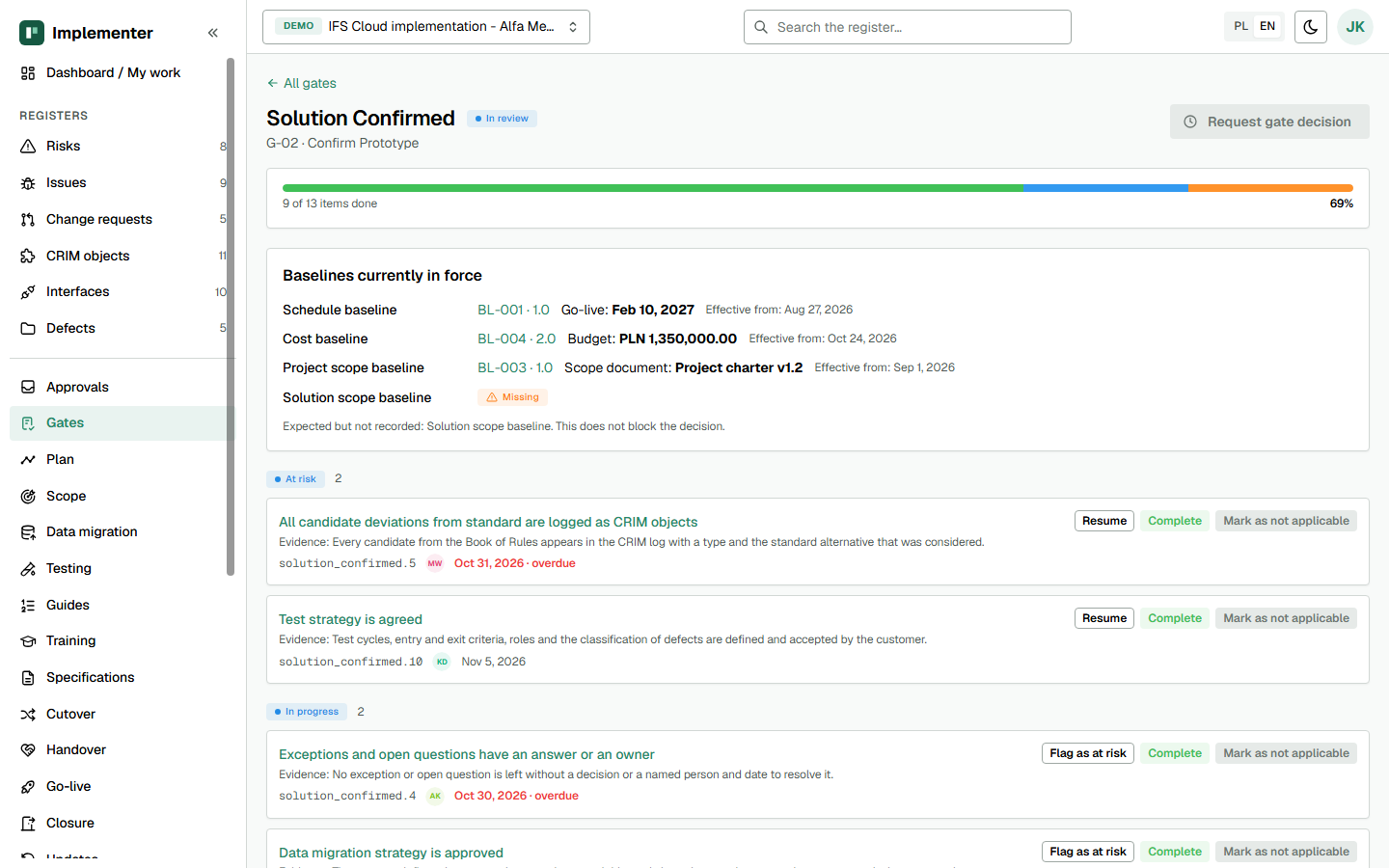
Solution Confirmed in review on demo data: 9 of 13 items done, two at risk and two in progress. The solution scope baseline is marked Missing, and the Request gate decision button is greyed out for this user.
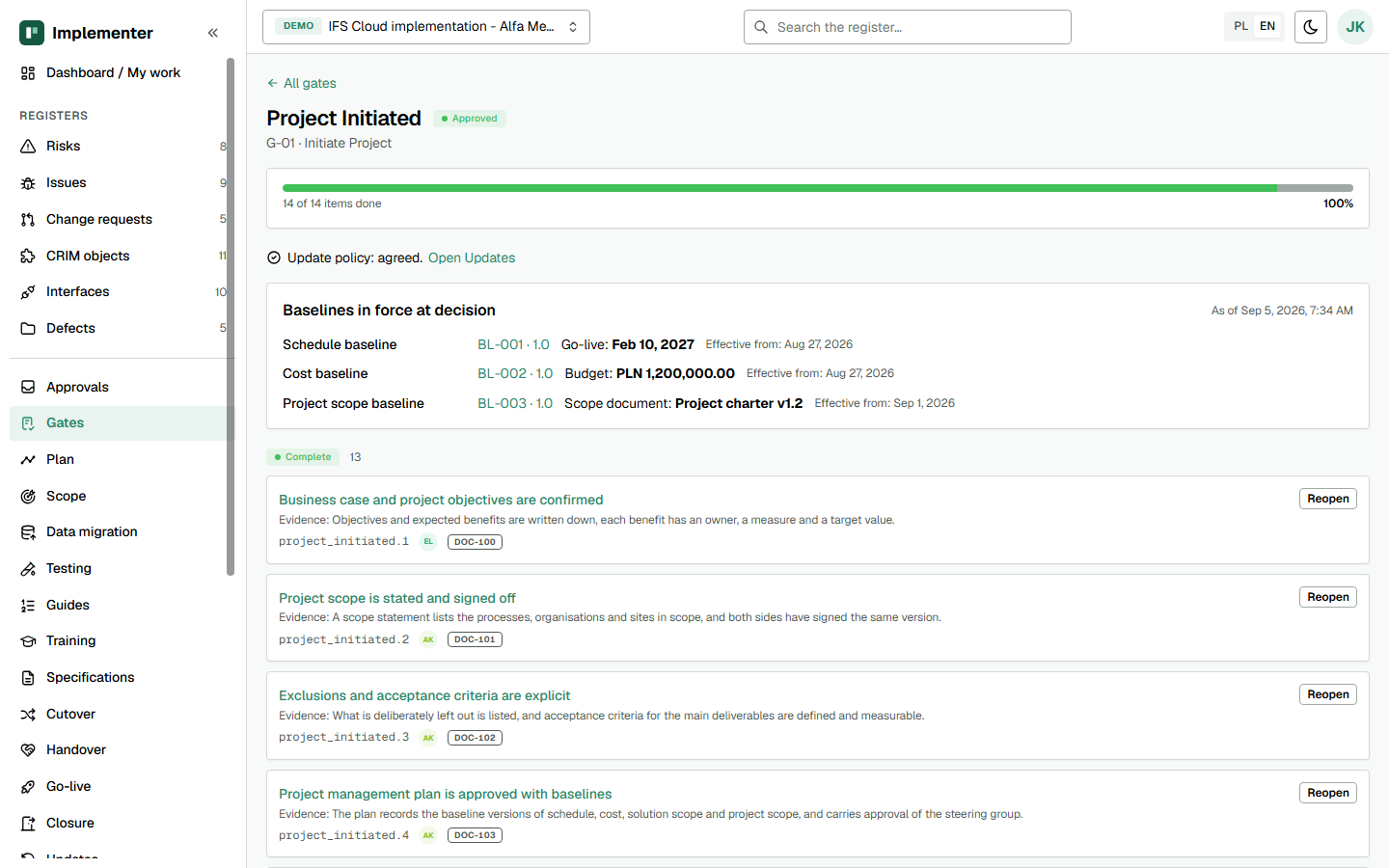
An approved gate on demo data, showing the baselines in force at the time of the decision.
How it maps to the template
| Template section | Implementer |
|---|---|
| Overview of the five gates | Gates page, one tile per gate |
| Gate sections 1-5, numbered items | Checklist items, codes such as solution_confirmed.5 |
| Evidence requirement | Evidence text on the item, and the Evidence reference field |
| Owner | Responsible role field in the item details, preset from the template |
| Status | Not started, In progress, At risk, Complete, Not applicable |
| Comments | Risk note, Reason not applicable, evidence note |
| Section 6, gate decision record | Gate status, decision date, decision notes, History tab |
| Conditions and owners | Conditions entered with the decision, created as linked issues |
Gate and approval behaviour
Request gate decision is blocked while any item is Not started. The message is: "The gate cannot be decided while any checklist item is still not started." Items in progress or at risk do not block, because they are the usual source of conditions.
Approving with conditions needs at least one condition with owner, due date and verifier. Each becomes an issue in the register, linked to the gate. A rejection sets the gate to Not approved.
The baselines panel lists the baselines the gate expects (schedule, cost, project scope, solution scope) as they were in force when the decision was made. A baseline kind the gate expects but the project lacks gets a Missing badge and a note. This is a warning and does not block the decision.
Other register pages in Implementer show whether they can back a specific item, for example the Book of Rules page for Solution Confirmed and the Specifications page for Solution Established. These pages only report. A person still completes the item.
Not in the application yet
- A generated gate decision record document.
- Automatic completion of an item from register data.
- Signature tables for the template's five approver roles; the approval flow replaces them.
Related
- Product page: Implementer: implementation support for IFS Cloud
- IDK-07 Change request
- IDK-09 Book of Rules
- IDK-10 CRIM log
- Kit page: IDK-08 on ifs-erp.com
Independent product, not an official IFS document. IFS is a registered trademark of IFS.
